Showing posts with label Tricks. Show all posts

Thursday, 20 December 2012

5 Things You Should Do Before Quitting Facebook

0

Things to de before quitting Facebook
Facebook has been around for almost eight years now. Over those years, it has amassed more than 900 million users under its blue banner, which is a great achievement in itself, not to mention the impact it has had on people's life, especially teenagers. However, as a result of some developments, recent or otherwise, people have been trying to limit, or cut off Facebook altogether. Personally, I can think of many reasons why they'd want to do this. But in any case, if you're one of these people, then you might want to preserve some of your most important information before saying goodbye to Facebook. Even after quitting Facebook, you can still use some of the features it provides, so you wouldn't really feel left out.

Why would you want to quit Facebook?

As I said, recently, quite a few people have been either deleting or deactivating their Facebook accounts. Perhaps Google+ is to blame. But on a broader spectrum, Facebook itself is responsible for most of it. First, of course, is the enormous waste of time. Facebook is a void where no matter how much time you put, nothing productive is gonna come out, nor will that wasted time come back. Users might end up on Facebook for hours, looking through statuses, playing games, sharing funny images, and so on.


Then, of course, is the privacy issue. People get hacked every day, or get phished for sensitive information they do not want to divulge. Contact information is being leaked and people are being spammed. Photos are edited and spread, and scandals are being made. There's really no limit to what these hackers can do. We recently wrote a post on how to protect your privacy on Facebook. You can take steps to ensure your privacy, but there's never a 100% guarantee. Hackers always seem to be one step ahead of security engineers. So for some people who don't use Facebook very much, it might be a good idea to step off altogether.


There's also the competitive attitude associated with Facebook use. Users are competing with others, and comparing each other, and hence developing complexes. Rude posts and images are not only being liked, but also being spread, which is something one wouldn't do in real life. All of this could be contributing towards psychological instability. As Bertrand Russel says, if you can't provide an outlet to your emotions, they'll make you all the more weaker. And you definitely can't express your emotions in front of a computer screen.


The bottom line is, Facebook has lost a certain of its charm. And since I've been using Facebook for around 7 years now, I can safely say that. Anyhow, you get the point. Here are some things you could do to preserve your information before logging off for good.

1. Back up your Profile

Backing up Facebook profile is one of the best ways to preserve your information. You can download a copy of your Facebook profile, with all the photos and your statuses and wall posts, along with your contacts. To back up, simply go to your Account Settings, and you'll see an option for Downloading a copy of your Facebook Data. Click on that and you'll be guided through the steps. Facebook will send you an email once it has done creating a back up for you. You can download that back up. For more information, read the article below


2. Sync your contacts

Android and iOS smartphones have apps that let you sync your Facebook contacts with your smartphone. iOS has SmartSync, while Android has AddressBook. These will fetch contact information from your Facebook friends, and add them to your phone book. Contact information include email addresses, phones numbers, home addresses (if available) etc. You get to choose which friends you want to Sync, and what information you want to sync. This is a really handy way of staying in touch with your friends.

3. Export Birthdays

You can also preserve birth day information for your friends. If you go over to your Facebook Events page, you will see a magnifying glass icon. Click on Birthdays, and it will appear again. Clicking on that will give you an option to export birthdays in a variety of formats compatible with major scheduling programs.

4. Organizing events

For organizing events, you don't necessarily need to use Facebook. There are other plenty of services that will create events for you. Once such is Doodle, while another is Evite. You can simply fill out the details for an event, and these services will send out emails to your friends, to which they can RSVP easily. This way, you can keep your events private. And sending out emails make them feel more personal and connected to you.

5. Back up your photos

Facebook does not allow you to transfer your photos to another site directly. But there are other indirect ways. First of all, when you back up your profile as we mentioned above, your photos will be backed up as well. But if you want to move your photos to another site, you will have to do that manually. You can, however, transfer them easily to Google's photo sharing site, Picassa. For this, you'll need a Google Chrome extension,Move Your Photos. This allows you to see all your Facebook photos as thumbnails, which you can sort or move over to Picassa.

That's it for the tips. If you have any questions, let us know in the comments below, or follow us Google+ and feel free to interact!

Saturday, 1 December 2012

How to Add " About the Author " Box Below Every Blogger Post

2

 Adding About the Author box below every blog post is fairly easy. It gives a professional  look to the blog. You might havecome across   such widgets in WordPress blogs, but unfortunately there is non for blogger so we need to add some code in Edit HTML.

After working out this post you will end up something like this : 
You might have noticed such " About the Author " section on many of the posts at BLoggingeHow. This isn't meant to give all the information about the authors, instead its totally based on few lines describing authors blogging activity. It can link to other pages as per need.

So lets jump in to learn this beautiful tweak for Blogger.

Step 1:

Go to Design >> Edit HTML
Tick the check box.


Step 2:

Search for the following code : (Press Ctrl + F)

 ]]></b:skin>


Now just above this code add the following piece of code.


.author-box {
background: #F7F7F7;
margin: 20px 0 40px 0;
padding: 10px;
border: 1px solid #E6E6E6;
overflow: auto;
}
.author-box p {
margin: 0;
padding: 0;
}
.author-box img {
background: #FFFFFF;
float: left;
margin: 0 10px 0 0;
padding: 4px;
border: 1px solid #E6E6E6;
}

By adding this code, we defined the CSS layout for the " About the Author Area ".
  
Tip : ( Note CSS is always added in the <head> tag.)


Step 3:

Now this is the part where you need to customize you own " About the Author Area " according to your need. Edit the following code as you want.


<b:if cond='data:blog.pageType == &quot;item&quot;'>

<div class='author-box'>

<p><img alt='' class='avatar avatar-70 photo' height='70' src='Your Photo Link' width='70'/><b>About the Author</b><br/>

<div style='text-align: justify; font-family: verdana; color: rgb(0, 0, 0);'>Write Something About yourself<br/>


Follow Me on Twitter <a href=' Your Twitter Link '>Your Twitter link Anchor text</a>

<p style='margin:-8px 0'><br/><center>

<a href=' Your Blog link ' style='text-decoration:none;font-size:70%;'>Your Blog Name</a></center>
</p></div></p>

</div>

</b:if>


 Change the following things as you wish them to be displayed

  • Your Picture Link
  • About the Author text ( In my case its About Zaib Abbasi )
  • Write Something About yourself
  • Your Twitter Link
  • Your Twitter link Anchor text
  • Your Blog Link
  • Your Blog Name

 Step 4:

Add the above code ( once you are done with editing ) below the following code :


<div class='post-footer-line post-footer-line-1'/>


Step 5:

Chill out ! You have unlocked an achievement

Friday, 16 November 2012

Remove deactivated Profiles from your Facebook friend list

0
Remove deactivated Profiles from your Facebook friend list
Remove deactivated Facebook profiles
Facebook might be the largest social network in action today, but it isn't without its flaws. A lot of changes made by Facebook seem to cause problems for the users, especially the ones made in 2012. First, the Timeline, then the ticker and the ability of friends to add you to groups without permission. Then there's this problem regarding deactivated and deleted profiles in your friend list. Since the changes made, people started to notice old profiles (and new) that had been deactivated in their friends list. Now this isn't a problem, but it sure clutters up your list and inflates your number of friends. You can easily find and delete these profiles from your list and clear up things.

Detecting deactivated profiles

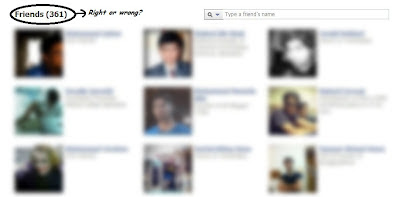
So how do you know you have these "Ghost Profiles" in your account? Here is a simple test. Go to your profile, and note down the total number of 'friends' you have. This will show you the total number of people in your friend list, including those who have deleted or deactivated their profiles. This is where the problem is, because it should only display the number of active profiles. Hence, Facebook's metrics are flawed, so to speak.

Now, go to https://www.facebook.com/me/friends, and (if possible), count the total number of profiles displayed there (This is where your school arithmetic lessons might come in useful :D). This number will most likely be lesser than the previous one. I, for one, have 361 friends in my list, but upon counting them, I came up with a count of 349, give or take a couple.

Facebook friends

Why does this happen? Suppose you had 100 friends, and Mr. X added you on Facebook. So your total count becomes 101. Sometime later, he decides he's better off without Facebook, so he deactivates his profile. Your count should get back to 100, but it doesn't. It'll be 101, with an added "Ghost Profile".

Removing deactivated profiles

You can easily remove the ghost profiles from your list manually. If you start searching on Facebook with a letter, Facebook will show you your friends that have that letter in their names. For examply, type in 'x' and you will see Mr. X there.

You can recognize the de-activated profiles from the default silhouettes instead of profile pictures. You might also see silhouettes in your friend list. If those silhouettes are active profiles, then you will see a pop-up when hovering over them. Otherwise, they're just deactivated profiles that you can choose to delete. Click on them, and you'll get a message saying that the profile has been deactivated. There's an option to un-friend that profile. Go ahead if you want.

Active profiles


What is Pinterest? How To Promote Your Blog With It?

0

What is Pinterest? How To Promote Your Blog With It?

A feeling of anger can be easily observed these days among the Facebook fans due to the launch of its new timeline layout and forceful replacement of old profiles with it. We are curious to find out and predict the future of Facebook. Will the lovers of Facebook stick to it or they would seek a replacement for it now? What are the other options available?
One option is quite obvious; Google+. But when we dug more, we found another potential competent. This competent was launched as closed beta version on March, 2010. Yes, I am talking about the online pin board i.e. “Pinterest“.

Overview of Pinterest:
It has found its place in the top 10 largest social networking service as the site has 11.7 million unique users. It has been awarded as the best new startup of 2011 by technology giant, TechCrunch. It is success rate is making a history. Some mobile applications, iPhone and iPad applications are also being developed.
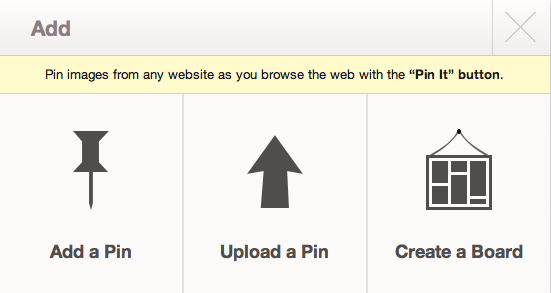
In the world of pinterest; images are called ‘Pins’ and videos are called as ‘Pinboards’. Users can upload, save, organize and share their favorite pins so that they are easily seen by other people. You can easily use ‘Pin it’ button to add your favorite content to your board. You can use anyone’s content and “Re-pin”  it. What is Pinterest? How To Promote Your Blog With It?
You can register yourself by requesting an invitation from the website or if any of your friends invite you. Just like the newsfeed option of facebook , we have a pinfeed option here that shows chronological activity of the user. You can also tell your choice by using “TasteMaker” and that will lead you to pinboards of your interest.
Etiquettes of Pinterest:

Well, this was not planned to be included but when I received invitation from Pinterest , I was delighted to find these etiquettes. We find it another feature differentiating it from facebook .They do have a well defined set of “Terms of Services”; but still we received the following guidelines individually:
Pinterest Etiquette: Try to…
  • Be Respectful. Pinterest is a community of people. We know that individual tastes are personal, but please be respectful in your comments and conversations.
  • Be Authentic. Pinterest is an expression of who you are. Being authentic to who you are is more important than winning lots of followers or fans.
  • Credit Your Sources. Pins are the most useful when they have links back to the original source. If you notice that a pin is not sourced correctly, leave a comment so the original pinner can update the source.
Link Facebook and Twitter Accounts:
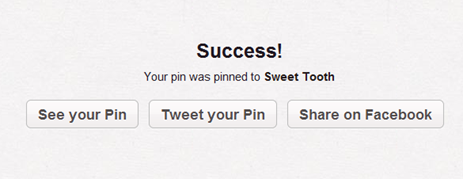
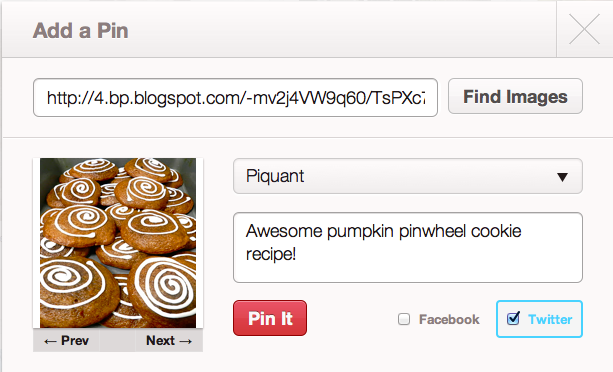
Another interesting feature is to link accounts .i.e. you can link your face book and twitter accounts with pinterest. This allows you to find your friends on Facebook and twitter. You can also unlink your account at any time. So any time you like something and pin it; you would also wish to tweet it or share it. Pinterest is aware of your need that is why you are provided with the options.

 What is Pinterest? How To Promote Your Blog With It?
Frame Your Pins:
Since it is the pinboard and this game revolves around how good you are at pinning? So, be a little careful in placing your pins. When you want to add a pin; you have the option to add a description for it which is just like a caption. You can then select its category .As we have mentioned above, these categories help you to find out content of your interests. What is Pinterest? How To Promote Your Blog With It?
How To Promote Your Blog With it?
In coming posts Mohammad will guide you how to integrate a Pin it button in Blogger blogs. This installation of this new plugin would be interesting if done with a separate post. So stay updated. He will guide you how to use Pinterest to increase blog traffic and let your content circulate on this new social media giant. Today’s post was intended to introduce visually appealing social networking site. Now, the question is if it’s all a glamorous touch which will fade out soon or it will kick out the one in power for so long? Will this “Pin it” button be able to replace the famous “Like it”?
What’s Next:
Well, we agree that if you are already using pinterest then there’s nothing new in this post. But , it was required to bring all respected readers at the same level so that everyone will be in pace with us .We will soon be writing posts on ‘Pinterest Tips and Tricks’ so that you can enjoy this colorful board and use it for promoting your brands, blogs or communities.
Stay tuned!

Email Subscription + Social Share Widget For WordPress & Blogger

0

Email Subscription + Social Share Widget For WordPress & Blogger

This is Grat Widget for Blogs, This is Simple Code that you can add Simply in WordPress or Blogger no Need any plugin etc.
its Simple Code you should just change your Social usernames etc.
Features :
  • No Need any Plugin
  • Simple Code
  • Simply can add into widget area.
  • Get more Traffic from Socials
  • Easy to Increase Subscriptions
  • Easy to Customize
  • Much more….

How to Add Widget?

  • Simply login into your Dashboard
  • Go to Widget Area
  • Click on add new Widget
  • Choose Tex/html
  • And Copy the Code frome Below and paste there
  • And save changes and see the blog
[toggle title_open="Click Here to see the Code" title_closed="Click Here to see the Code" hide="yes" border="yes" style="default" excerpt_length="0" read_more_text="Read More" read_less_text="Read Less" include_excerpt_html="no"]
<style>
.mbtbar{width: 100%; float: left;}
.mbtbar .count{color:#333; font-size: 14px; font-weight: bold; font-family: Helvetica, Arial; background: #fff; height: 45px; line-height: 45px; vertical-align: middle; width: 100%; padding: 0 10px 0 4px;}
.mbtbar .count span.bigcount{color:#F17C18; font-size: 24px; font-family: Helvetica, Arial; line-height: 39px; vertical-align: top; padding-right:3px;}
.mbtbar .subicons{border-bottom: 1px solid #e6e6e6; margin: 0px 0 0px 0; float: left; width: 300px; font-family: Helvetica, Arial; font-size: 14px;}
.mbtbar .subicons a{text-decoration: none; color:#333333;}
.mbtbar .subicons a:hover{text-decoration: underline; color:#333333;}
.mbtbar .subicons .rssicon{border-right: 1px solid #e6e6e6; background: url(https://blogger.googleusercontent.com/img/b/R29vZ2xl/AVvXsEjbBzL4JWzB1d9Q0D8LqTsjzxzMtDWw7u2WHhjxBOcAKcf-6lY7Ht4tpm5yTvkRt8gd0q-AOgx6Xh3h0sjcz76HECc6bXqFv2gMS49eVjQNgnIkForlQVovwQHWeB2focHiQUQhRGJx75c/s400/rss.png) no-repeat left center; min-width: 20px; height: 48px; line-height: 57px; vertical-align: middle; float: left; padding: 0px 20px 0px 30px; margin: 0 0 0 5px;}
.mbtbar .subicons .fbicon{border-right: 1px solid #e6e6e6; background: url(https://blogger.googleusercontent.com/img/b/R29vZ2xl/AVvXsEj65fEU4ywbAzhj0beNKjS2iDVl4wLr2e9pR6qD4oDGDd_QMo_Mdq-Vyq3VmCWM_6gdPrtBh0YnZgvQysMbQW4wL7SxGXOcDXxUX_kA2zrhNviQ7l9Tmx7jcESSJzkVdNA0ztTNP-EOwK4/s400/facebook.png) no-repeat left center; min-width: 20px; height: 48px; line-height: 57px; vertical-align: middle; float: left; padding: 0px 20px 0px 30px; margin: 0 0 0 5px;}
.mbtbar .subicons .twittericon{background: url(https://blogger.googleusercontent.com/img/b/R29vZ2xl/AVvXsEjbp8wRoN0sVln3_R_PA4dPtokRHMKaPqWYrtmlKdUoywKrtAR1wW-aOCM-_SZXJwdHDaXj6GlfpxNg1RikYMgZKnYGLhlGgp5_KkIQ0anW0sBB57Yav1SqqXt7n37O6_U4UURGLYADOpE/s400/twitter.png) no-repeat left center; min-width: 20px; height: 48px; line-height: 57px; vertical-align: middle; float: left; padding: 0px 20px 0px 30px; margin: 0 0 0 5px;}
.mbtbar .emailsub{border-bottom: 1px solid #e6e6e6; padding: 15px 0 20px 0; float: left; width: 100%; font-family: Helvetica, Arial;}
.mbtbar .emailsub .emailicon{background: url(https://blogger.googleusercontent.com/img/b/R29vZ2xl/AVvXsEhDjrYXsTywSbiKH9AtIc6HS0am8IM2447pvq0dggxV-Dc6pW5atMY_Ef66rhhBXl34O7Q0IJ4pE2QqUx39h21Bslqq8r3zueEjDFWP_w982tsOAsndGVLAwNCDxkYaKiNaOShkp6ZjtWc/s400/email.png) no-repeat left center; float: left; padding: 5px 15px 0px 35px; margin: 0 0 0 5px; width: 300px; height: 28px; line-height: 28px; vertical-align: middle; font-size: 14px; color: #333; }
.mbtbar .emailsub .emailupdatesform{margin: 15px 0 5px 5px; width: 300px; float: left;}
.mbtbar .emailsub .emailupdatesform input.emailupdatesinput{background: #fff !important; float: left; border: 1px solid #d2d2d2; padding: 0px 8px 0px 8px; color: #a19999; font-size: 12px; height: 25px; width: 200px; -moz-border-radius: 5px; -webkit-border-radius: 5px;}
.mbtbar .emailsub .emailupdatesform input.joinemailupdates{background:-moz-linear-gradient(top,#57ABFE 0%,#0080ff 100%); background:-webkit-gradient(linear,left top,left bottom,from(#57ABFE),to(#0080ff)); border: 1px solid#0080ff; text-transform: uppercase; color: #fff; height: 25px; padding: 0 12px 0 12px; margin: 0 0 0 5px; -moz-border-radius: 5px; -webkit-border-radius: 5px;}
</style>
<!–[if IE 7]>
<style>
.mbtbar .count span.bigcount{color:#F17C18; font-size: 24px; font-family: Helvetica, Arial; line-height: 34px; vertical-align: middle; }
.mbtbar .emailsub .emailupdatesform input.joinemailupdates{background:#0080ff; border: 1px solid #0080ff; text-transform: uppercase; color: #ffffff; font-weight:bold; height: 25px; padding: 0 12px 0 12px; margin: 0 0 0 5px; }
</style>
<![endif]–>
<div><div>Join <span>1675+</span> People Following Inspirational Online</div><div><div><a href=”http://www.mybloggertricks.com/feeds/posts/default” target=”_blank”>RSS</a></div><div><a href=”https://www.facebook.com/InspirationalOnline” target=”_blank” rel=”nofollow”>Facebook</a></div><div><a href=”http://twitter.com/abbasizaibi” target=”_blank” rel=”nofollow”>Twitter</a></div></div>
<div>
<div>Stay Updated via Email Newsletter</div>
<div>
<form action=”http://feedburner.google.com/fb/a/mailverify” method=”post” target=”popupwindow” onsubmit=”window.open(‘http://feedburner.google.com/fb/a/mailverify?uri=tntbystc‘, ‘popupwindow’, ‘scrollbars=yes,width=550,height=520′);return true”><input gtbfieldid=”10″ name=”email” value=”Enter your email…” onblur=”if (this.value == &#39;&#39;) {this.value = &#39;Enter your email…&#39;;}” onfocus=”if (this.value == &#39;Enter your email…&#39;) {this.value = &#39;&#39;;}” type=”text” /><input value=”tntbystc” name=”uri” type=”hidden” /><input value=”Join” type=”submit” /></form></div></div></div>
[/toggle]

Wibya : Free Social footer Toolbar for your site

0

Wibya : Free Social footer Toolbar for your site

Here is Social great Widget for your blog and site
its will help you to stay connect your visitors with your site
1 click facebook like tweets, rss,
Online chats and much more
wibya Wibya : Free Social footer Toolbar for your site
Features
  • All colours
  • Easy to upgrade
  • Edit anytime you want
  • simple code interegate
  • Social tools all Youtube, facebook, yahoo, twitter
  • Online chat for all
  • Web based social media sharing toolbar for bloggers.
  • Easy to integrate. No coding required.
  • Add services like Twitter, Facebook, Youtube and let readers share content.
  • Application bank lists apps that can be added to the toolbar.
  • Much More
  • Get It Now Here

How-to Post to Multiple Social Networks When You Are Offline, Schedule It With Buffer

0

How-to Post to Multiple Social Networks When You Are Offline, Schedule It With Buffer

Facebook, Twitter, LinkedIn, Foursquare, Reedit, etc. are biggest social networks there is also many more but here are these some of social networks, peoples stay connect with each other with these networks,
As well I will tell you how you can post you 1 status link etc. to multiple social networks from one place, even you can schedule all them any time, and you can post status when you are offline.
Here is the App with the name Buffer App may be you heard are used it ever it is famous app on internet. Buffer is a web service for scheduling tweets, LinkedIn profile and group posts, as well as Facebook updates for both profiles and pages. Buffer is great if you want to plan ahead and schedule your updates in advance.
buffer app How to Post to Multiple Social Networks When You Are Offline, Schedule It With Buffer
How to set it up
Open Buffer App There Press Connect Account Button and authorize facebook & Twitter accounts Once you authorized you will be able make buffer Posts
Write Your Posts and select account. Click on Post or Add to Buffer.
How to Add Buffer Button to Every Post with Buffer for Chrome.
You Can Fine Buffer App for Firefox & Chrome and many Extra Apps Here
uffer For chrome Here
Buffer in Chrome How to Post to Multiple Social Networks When You Are Offline, Schedule It With Buffer
When you Witll Install Addon for chrome or Firefox A Buffer button will appear in every posts.
This is button on Facebook fan page while writing status.

This is Button on Twitter while tweeting.

You Can Configure your Buffer App for Chrome or Firefox from configuration settings.
Post and Schedule to Multiple Social Networks with Buffer 2 How to Post to Multiple Social Networks When You Are Offline, Schedule It With Buffer

I hope You may like it feel free to leave comment if trouble, we love to have comment and keep visiting my blog.


comments powered by Disqus

© 2013 iPRESS. All rights resevered. Designed by Templateism